
Tutorial: Employee Directory
In this tutorial, you’ll build a Confluence page that displays employee contact information from Jira Assets. Viewers can browse through employees using a dropdown selector.
What you’ll create: A page showing an employee’s name, department, phone number, email address, and profile photo. A dropdown lets viewers switch between employees.
Prerequisites: An object schema in Jira Assets with a “Person” object type (or similar) that has attributes like Name, Department, Phone, Email, and Photo URL.
Step 1: Create the Filter
- Edit a Confluence page
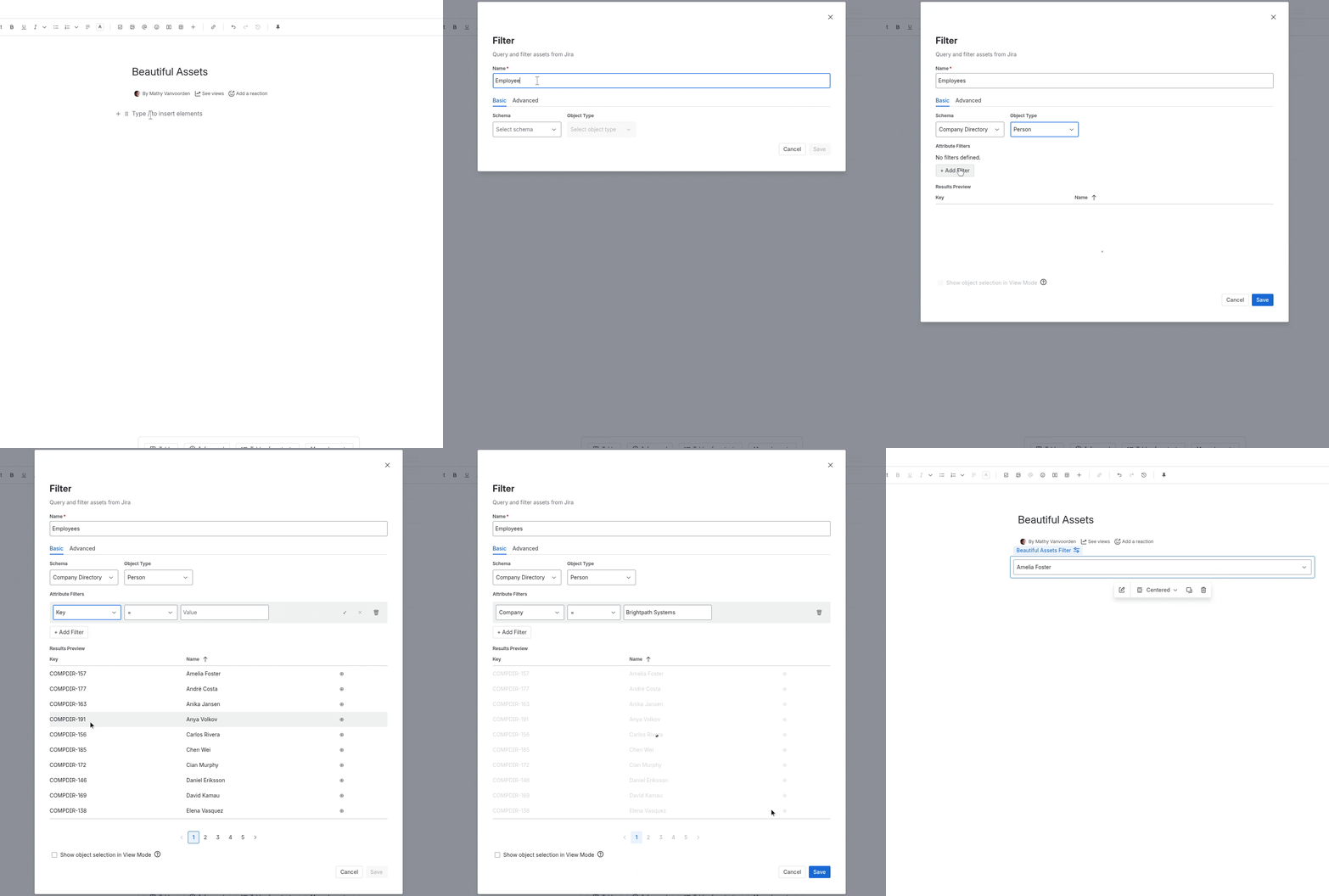
- Insert a Beautiful Assets Filter macro
- Configure it:
- Name:
Employees - Schema: Select your schema (e.g., “Company Directory”)
- Object Type: Select “Person”
- Optionally add a filter rule, for example
Company = Brightpath Systemsto show only that company’s employees
- Name:
- In the Results Preview, verify you see your employees
- Check “Show object selection in View Mode” to add a dropdown so viewers can pick an employee
- Click Save
Step 2: Add a Text Macro for Name
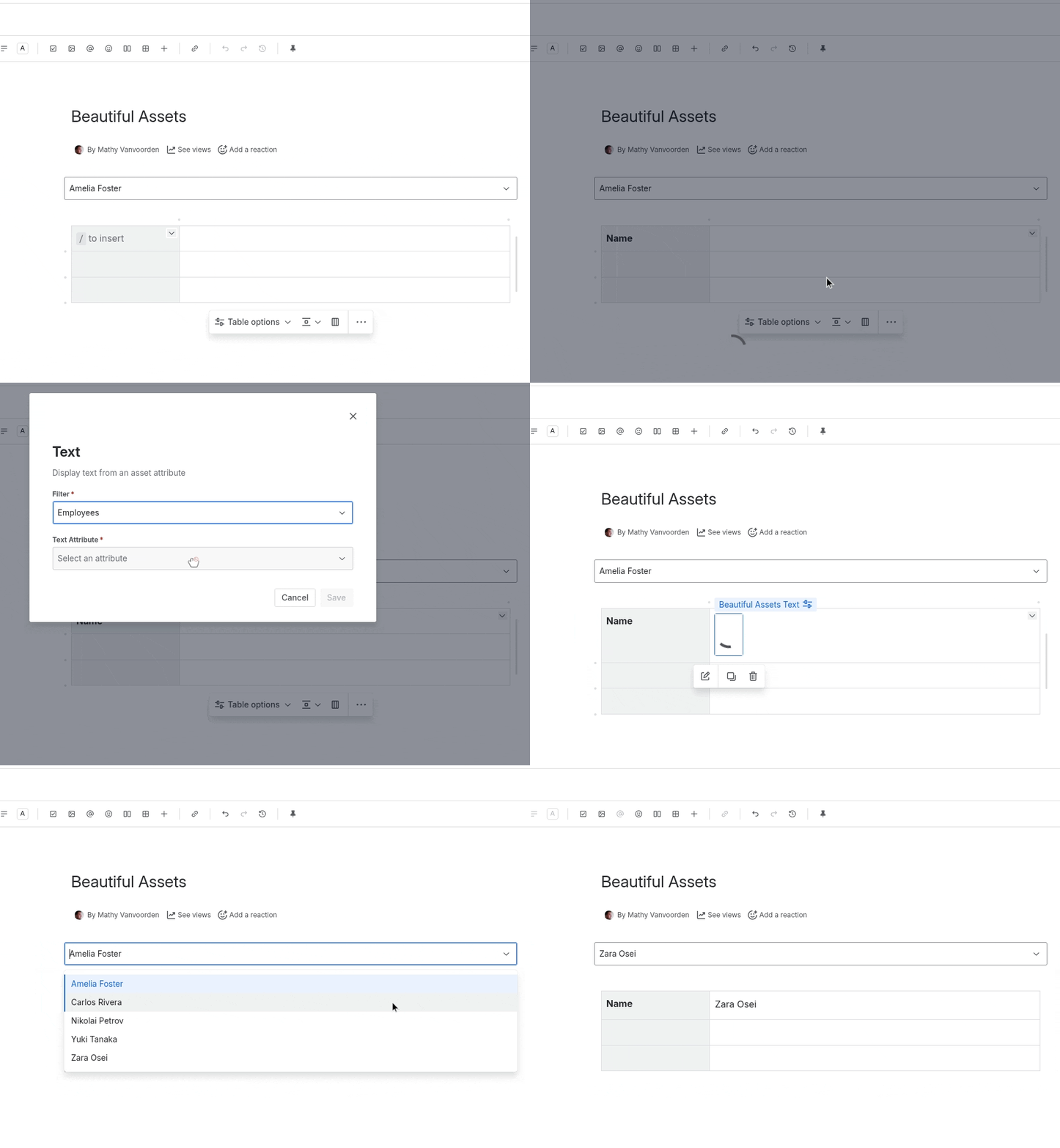
- Insert a Beautiful Assets Text macro
- Select the “Employees” filter
- Select the “Name” attribute
- Click Save
The employee’s name will display as inline text.
Step 3: Add a Text Macro for Department
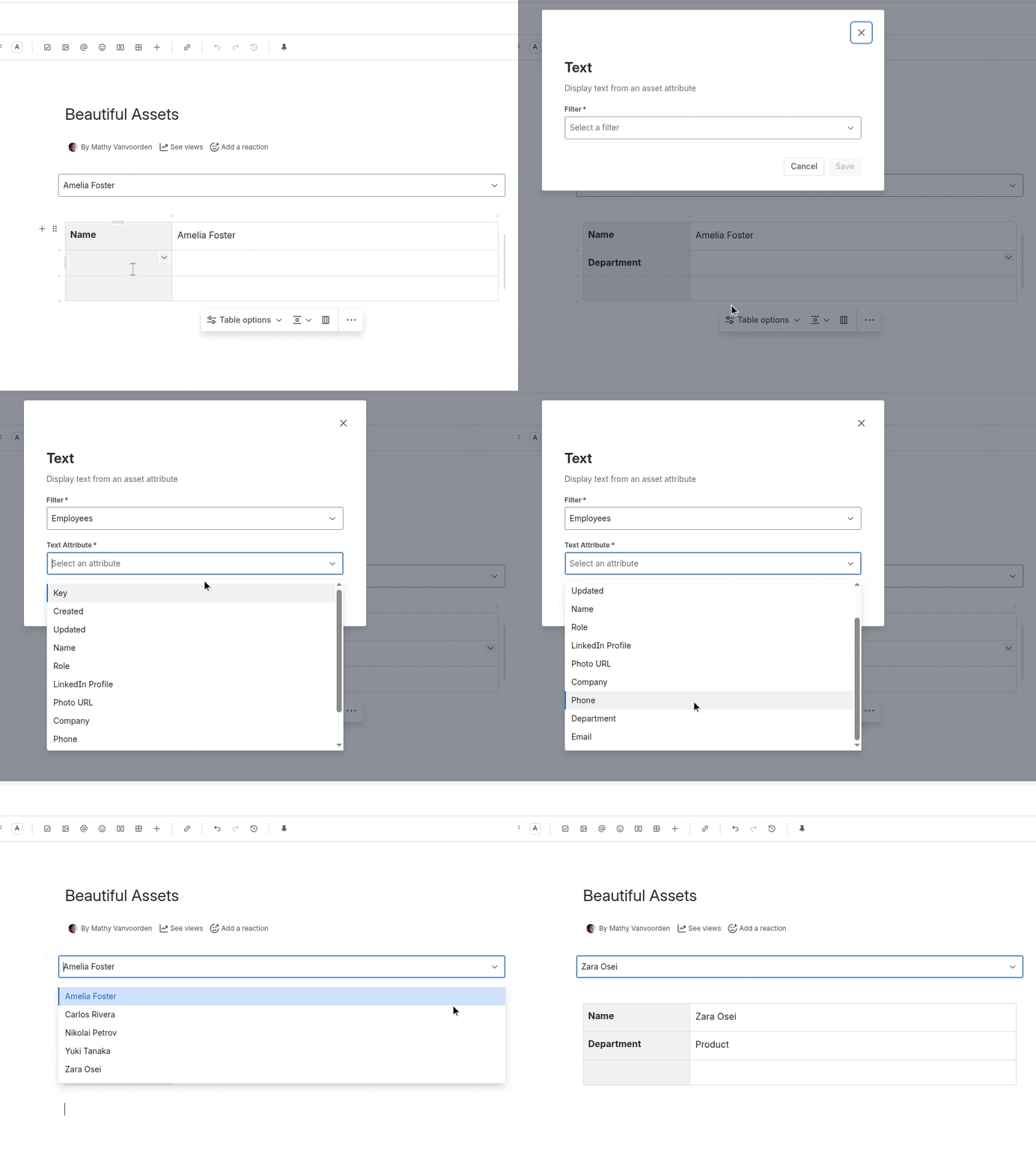
- Insert another Beautiful Assets Text macro
- Select the “Employees” filter
- Select the “Department” attribute
- Click Save
Step 4: Add a Phone Macro
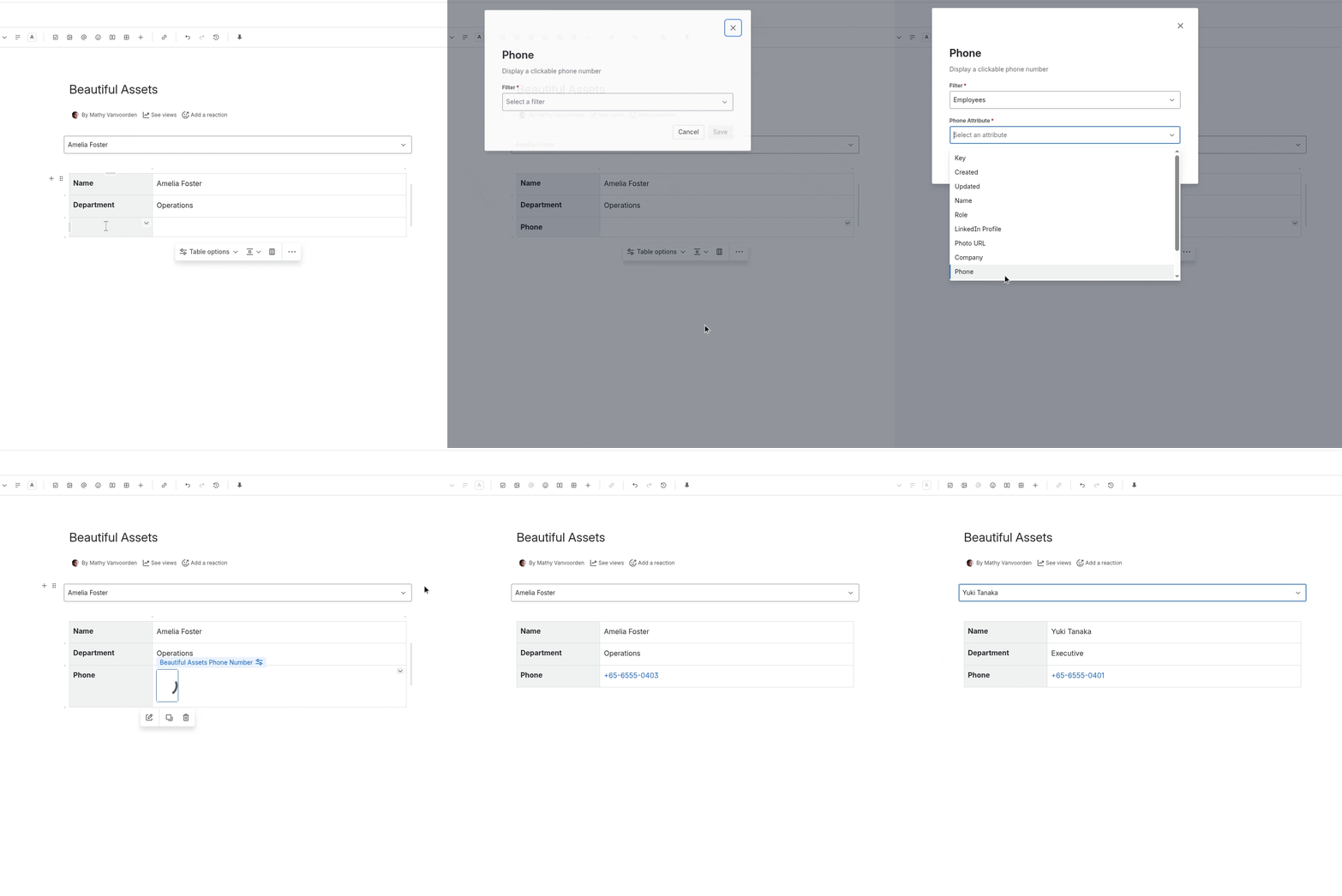
- Insert a Beautiful Assets Phone Number macro
- Select the “Employees” filter
- Select the “Phone” attribute
- Click Save
The phone number displays as a clickable tel: link that opens the user’s phone app.
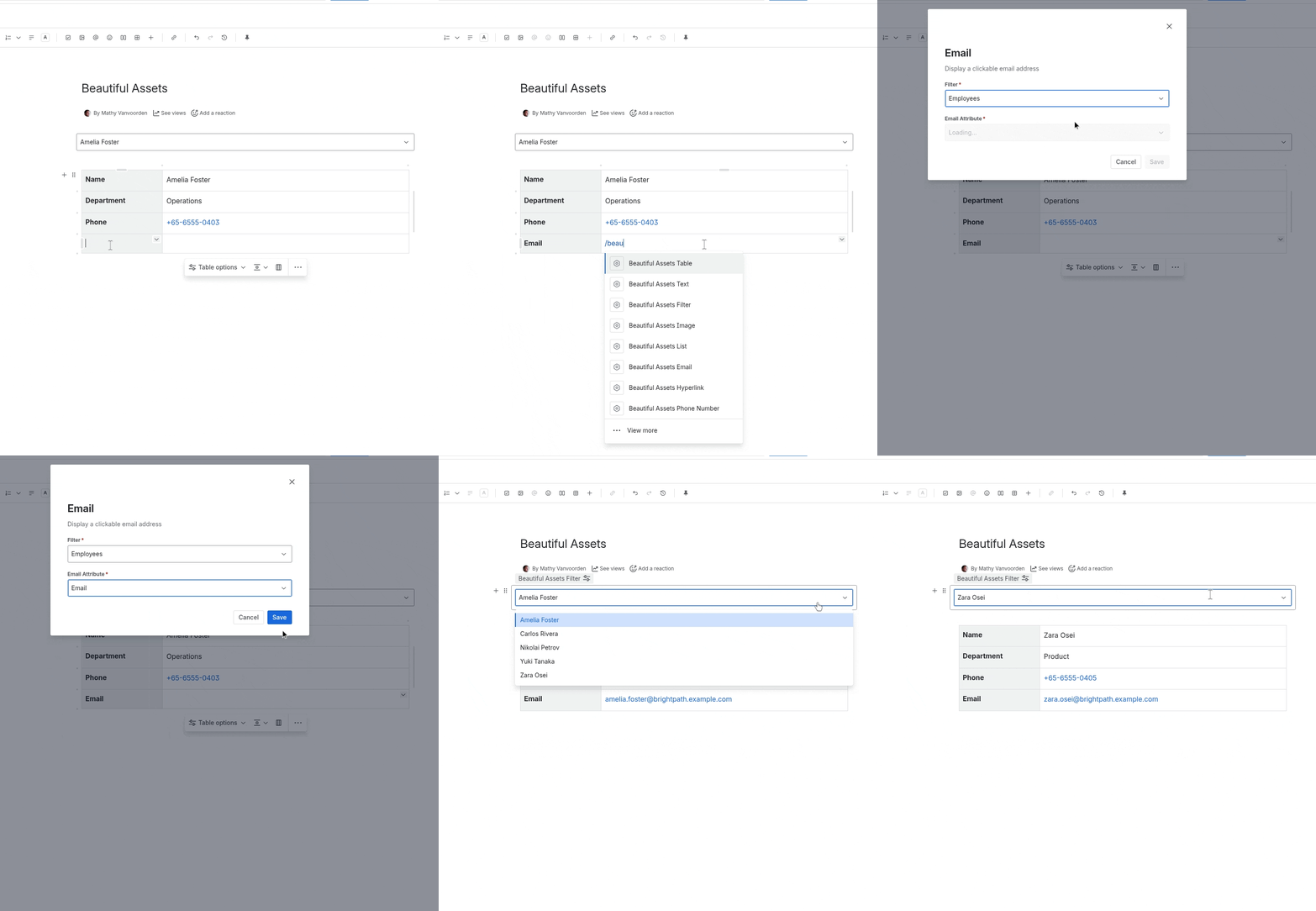
Step 5: Add an Email Macro
- Insert a Beautiful Assets Email macro
- Select the “Employees” filter
- Select the “Email” attribute
- Click Save
The email address displays as a clickable mailto: link.
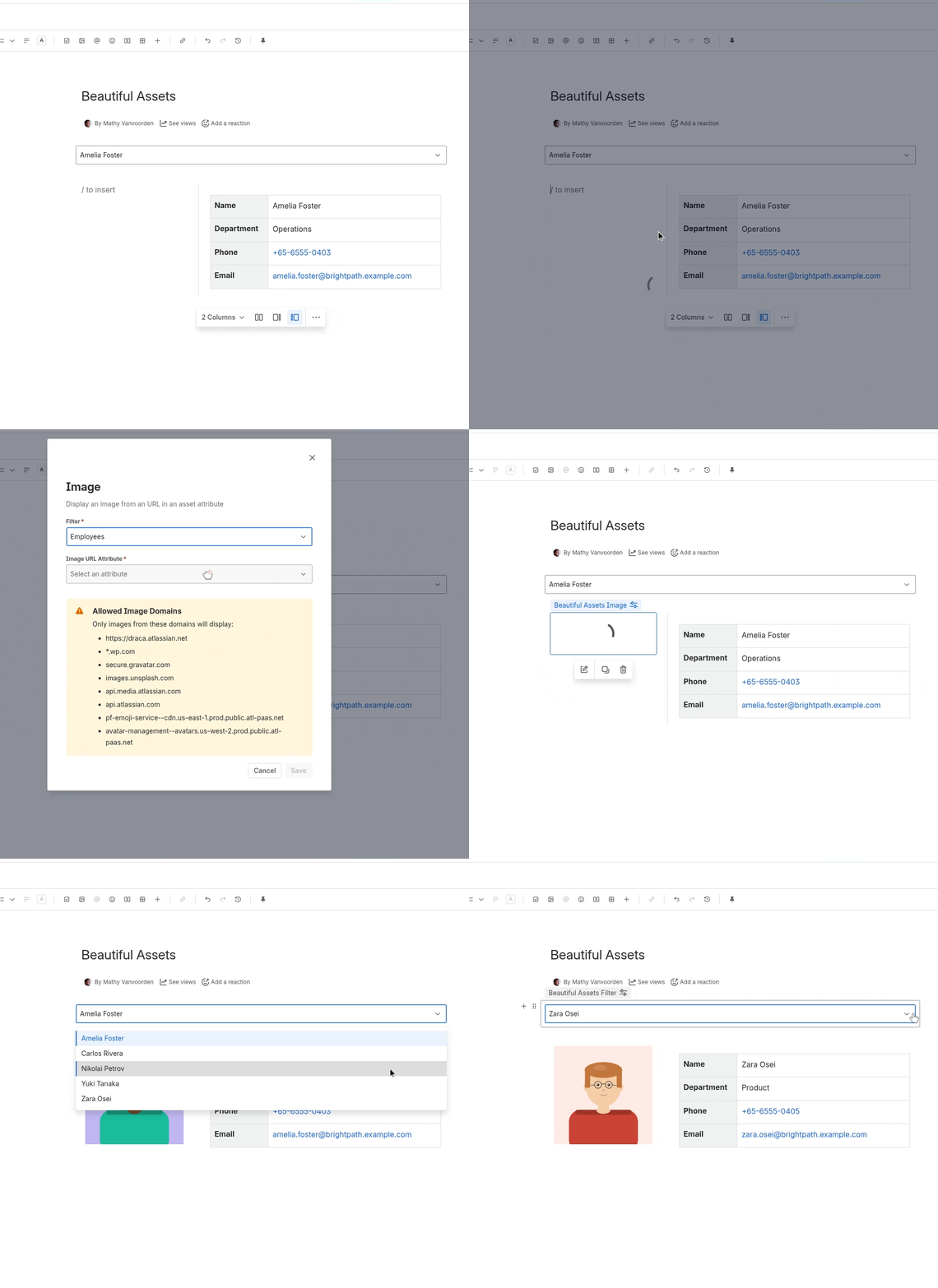
Step 6: Add an Image Macro
- Insert a Beautiful Assets Image macro
- Select the “Employees” filter
- Select the “Photo URL” attribute
- Click Save
Note: Only images from allowed domains will display.
Step 7: Publish and Browse
- Click Publish
- The page shows the first employee’s information
- Use the object selection dropdown to switch between employees. All macros update automatically
Final Result
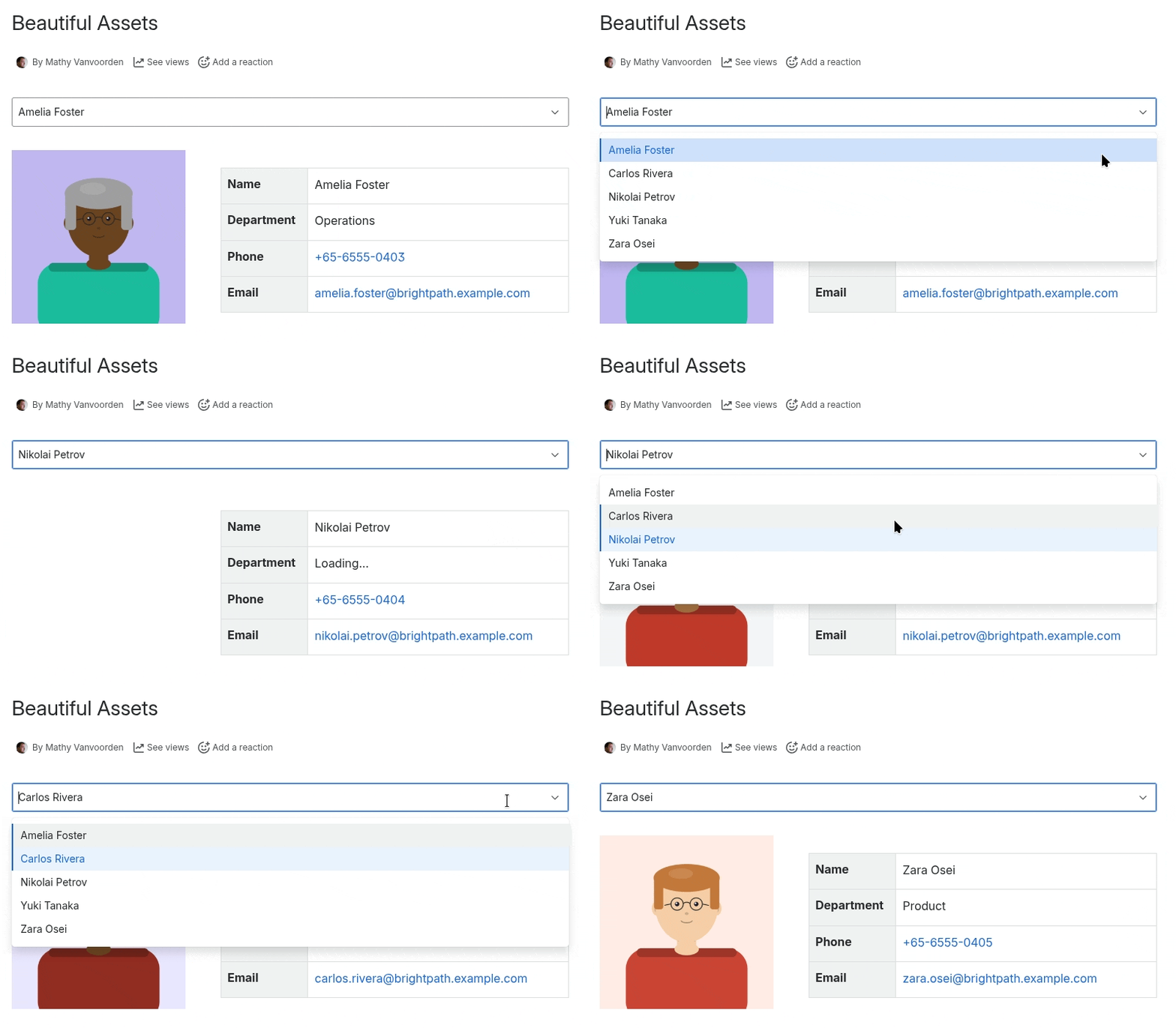
Your page now has:
- A dropdown to select any employee
- Their name and department displayed as text
- A clickable phone number
- A clickable email address
- A profile photo
All data is fetched live from Jira Assets on each page load.