
Table Macro
The Beautiful Assets Table macro displays all objects from a filter in a table format. It supports sortable columns, pagination, and link columns for URL attributes.
Configuration
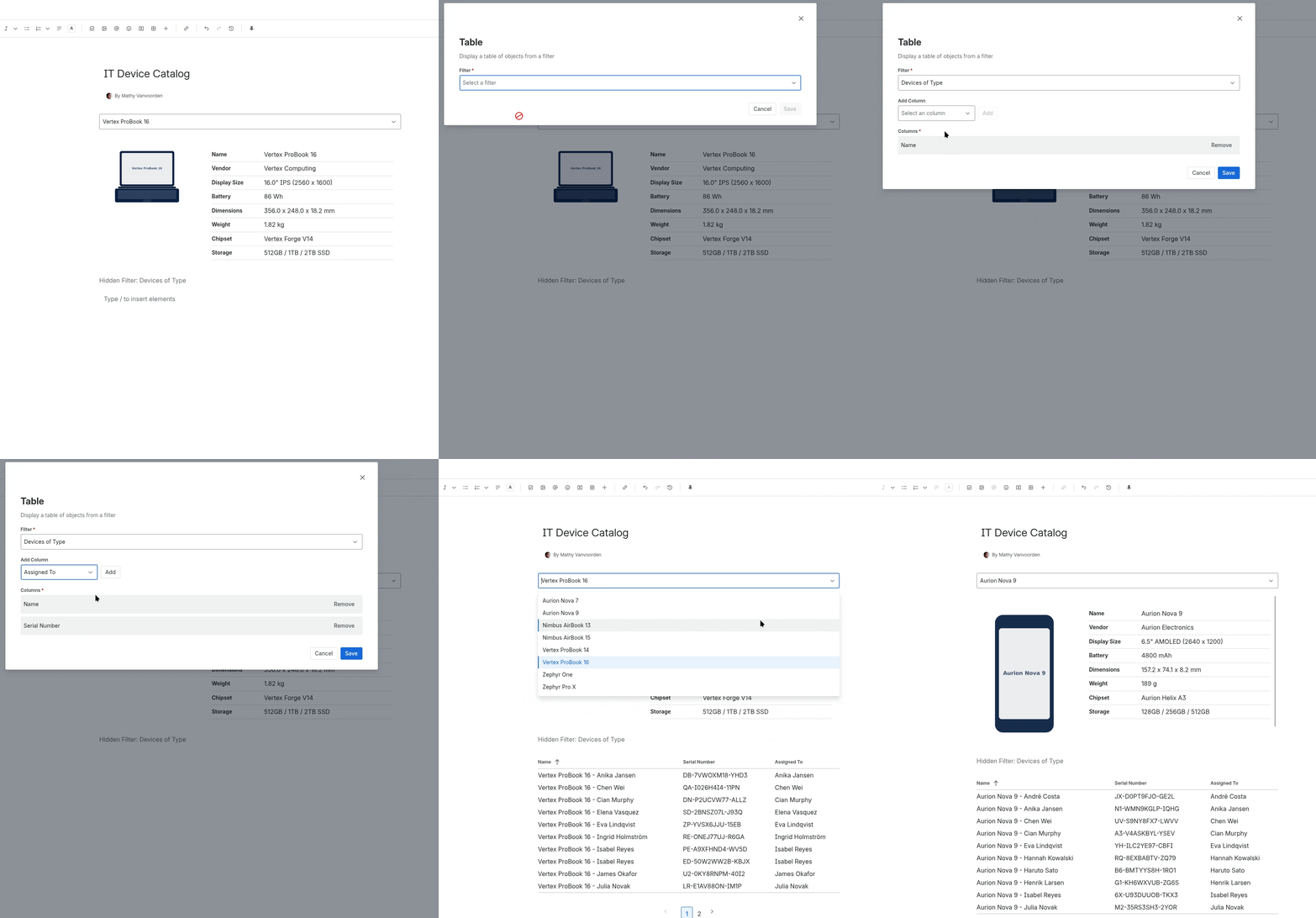
- Insert a Beautiful Assets Table macro
- Select a Filter from the dropdown
- Add columns by selecting attributes from the object type
- Optionally configure link columns for URL attributes
- Click Save
Adding Columns
Each column corresponds to an attribute from the object type. Add columns by selecting attributes from the dropdown. You can reorder or remove columns as needed.
Link Columns
If a column contains URLs, you can mark it as a link column. Link columns display clickable hyperlinks instead of raw URLs.
Link columns support three text modes, identical to the Hyperlink macro :
| Mode | Description |
|---|---|
| URL | Shows the truncated URL |
| Manual text | Shows custom text you specify |
| Attribute | Shows another attribute’s value as the link text |
Sorting
Column headers are clickable for sorting. Click a column header to sort the table by that column. Click again to reverse the sort order.
The table sorts alphabetically by default, using the first column as the initial sort.
Pagination
The table displays 10 rows per page. Navigation controls appear at the bottom when there are more than 10 results.
Notes
- The Table macro shows all objects from the filter, not just the selected one
- Object selection on the filter does not affect what the Table displays
- Columns with empty values show blank cells
- The table renders at full width within the macro container