
List Macro
The Beautiful Assets List macro displays a single object’s attributes in a vertical key-value layout. Each row shows an attribute name on the left and its value on the right.
Configuration
- Insert a Beautiful Assets List macro
- Select a Filter from the dropdown
- Add attribute rows by selecting attributes from the object type
- Optionally configure link text for URL attributes
- Click Save
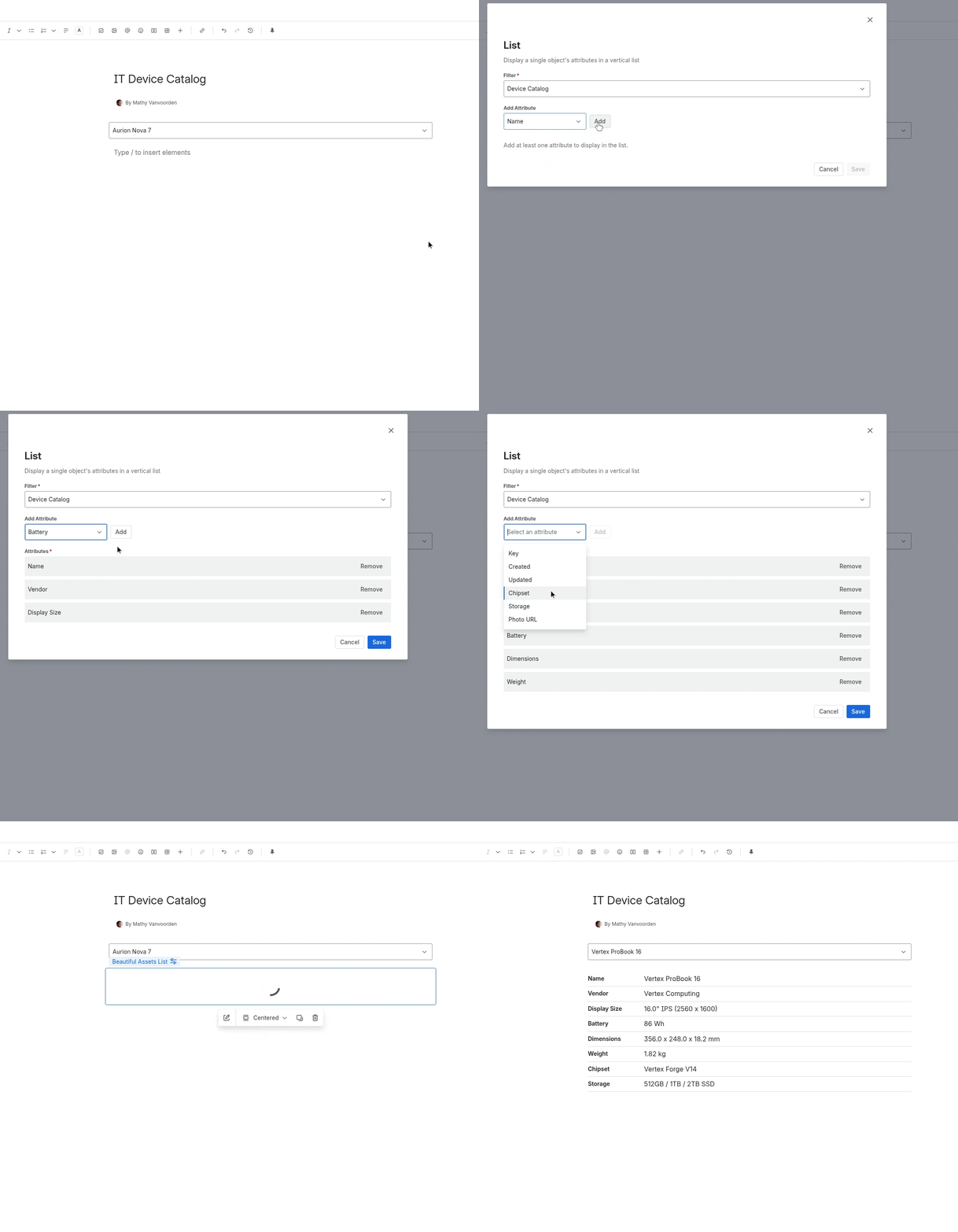
Adding Attribute Rows
Each row represents one attribute. Add rows by selecting attributes from the dropdown. The attribute name is used as the row label.
URL Attributes
For attributes that contain URLs, you can configure the link text mode, just like in the Hyperlink and Table macros:
| Mode | Description |
|---|---|
| URL | Shows the truncated URL |
| Manual text | Shows custom text you specify |
| Attribute | Shows another attribute’s value as the link text |
Object Selection Behavior
The List macro displays data for a single object. Which object it shows depends on the filter:
- Single result: The List uses that object
- Multiple results with object selection enabled: The List shows whichever object is selected in the filter’s dropdown
- Multiple results without object selection: The List shows an error message asking you to enable object selection on the filter
For the best experience with the List macro, either use filter rules that return exactly one object, or enable object selection on the filter.
Notes
- Attributes with empty values show blank rows
- The attribute name appears in bold on the left, the value on the right
- Rows are displayed in the order you configured them