
Hyperlink Macro
The Beautiful Assets Hyperlink macro displays a URL attribute as a clickable link. You can configure what text is shown for the link.
Configuration
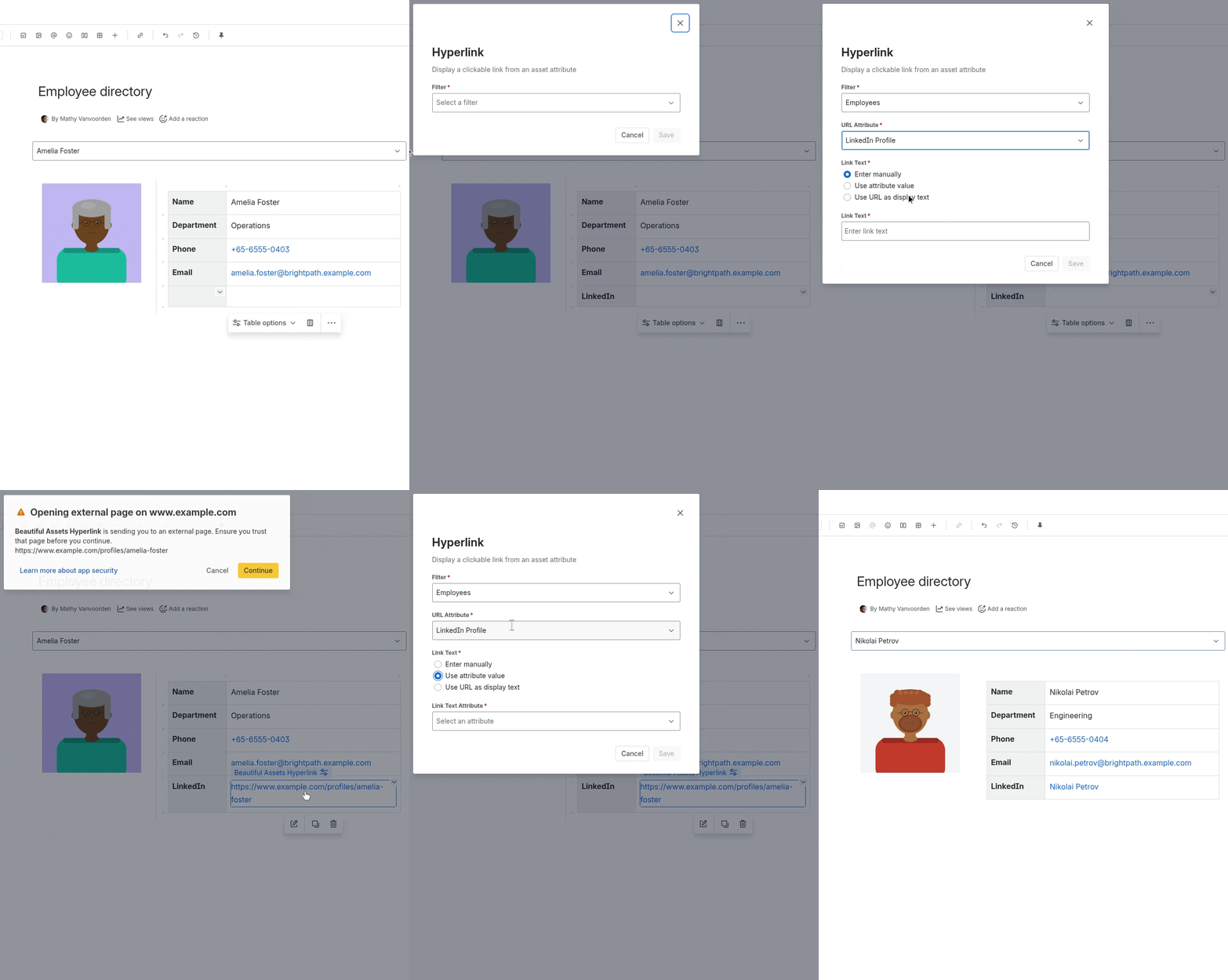
- Insert a Beautiful Assets Hyperlink macro
- Select a Filter from the dropdown
- Select the attribute that contains the URL
- Choose a link text mode (see below)
- Click Save
Link Text Modes
The hyperlink macro supports three ways to determine what text is displayed for the link:
| Mode | Description | Example |
|---|---|---|
| URL | Shows the URL itself (truncated if long) | https://docs.example.c... |
| Manual text | Shows custom text you specify | View documentation |
| Attribute | Shows the value of another attribute from the same object | Server-001 Docs |
URL Mode
The URL is displayed directly. Long URLs are automatically truncated to keep the page clean.
Manual Text Mode
You enter a fixed text string that is used for all objects. This is useful when the link text is the same regardless of the object (e.g., “View details”, “Open documentation”).
Attribute Mode
You select another attribute from the same object type. The value of that attribute is used as the link text. This is useful when you want the link text to be dynamic, such as showing the object’s name as the link label.
If the attribute has no value for a given object, the macro falls back to showing the truncated URL.