
Macros
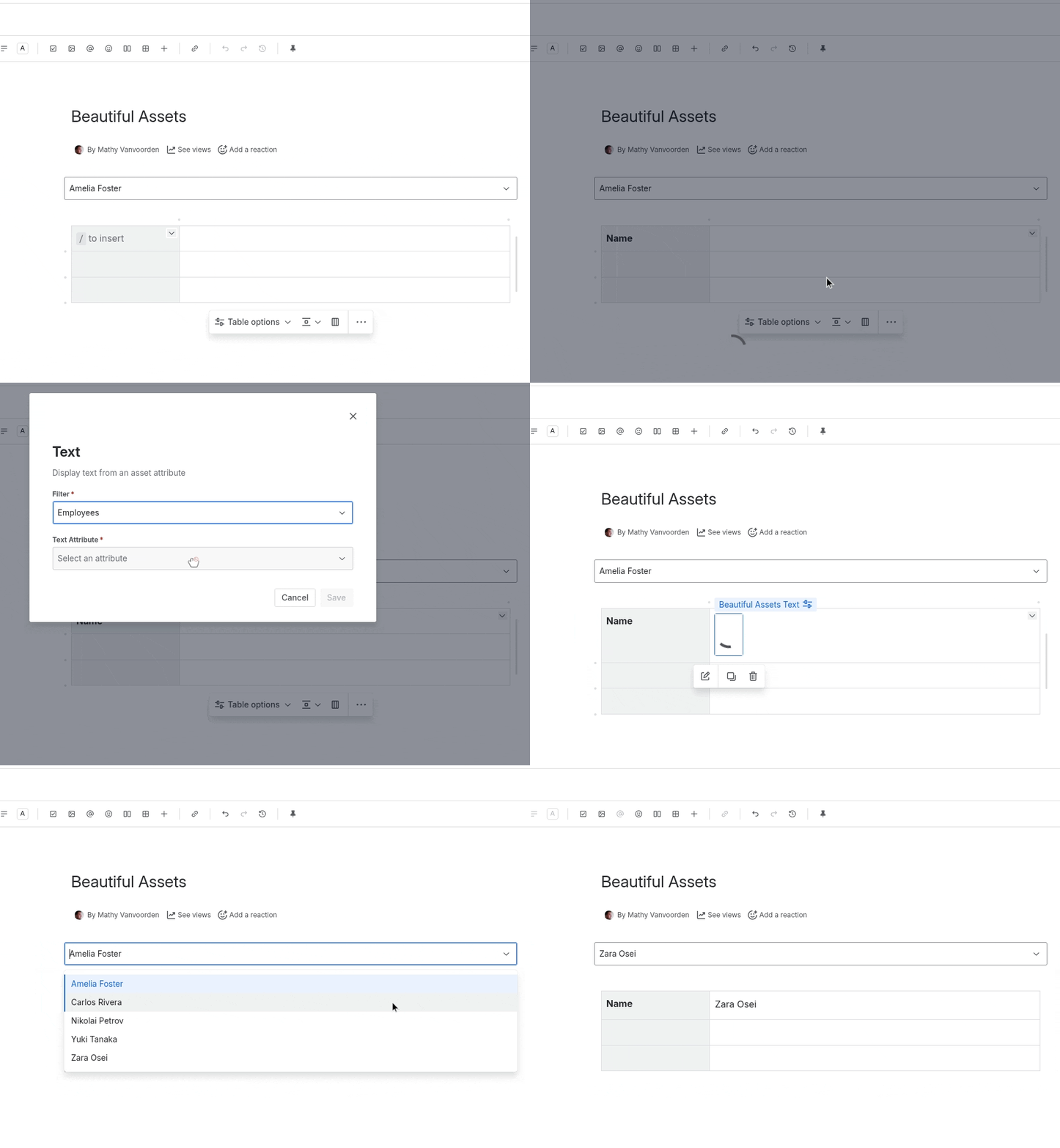
Display macros render data from a filter on the Confluence page. Each macro type is designed for a specific kind of content.
How Macros Connect to Filters
Every display macro is linked to a filter:
- In the macro configuration, select a Filter from the dropdown, which lists all Beautiful Assets Filter macros on the page
- Select which attribute to display from the chosen filter’s object type
- Save the configuration
The macro then displays the value of that attribute for the current object (determined by the filter’s object selection state).
Available Macros
| Macro | Description | Layout |
|---|---|---|
| Text | Display any text attribute value | Inline |
| Phone | Display a phone number as a clickable link | Inline |
| Display an email address as a clickable link | Inline | |
| Hyperlink | Display a URL as a clickable link with configurable text | Inline |
| Image | Display an image from a URL attribute | Block |
| Table | Display multiple objects in a sortable, paginated table | Block |
| List | Display a single object’s attributes as key-value rows | Block |
Inline macros can be placed within a line of text. Block macros take up their own section.
Single-Object vs Multi-Object
Most macros display data for a single object:
- Text, Phone, Email, Hyperlink, Image: Show one attribute value from one object
- List: Shows multiple attributes from one object
The Table macro is the exception; it shows all objects returned by the filter in a tabular format.
For single-object macros, which object they display depends on the filter:
- If the filter returns one object, that object is used
- If the filter returns multiple objects and has object selection enabled, the selected object is used
- If the filter returns multiple objects without object selection, the first result is used