
Object Selection
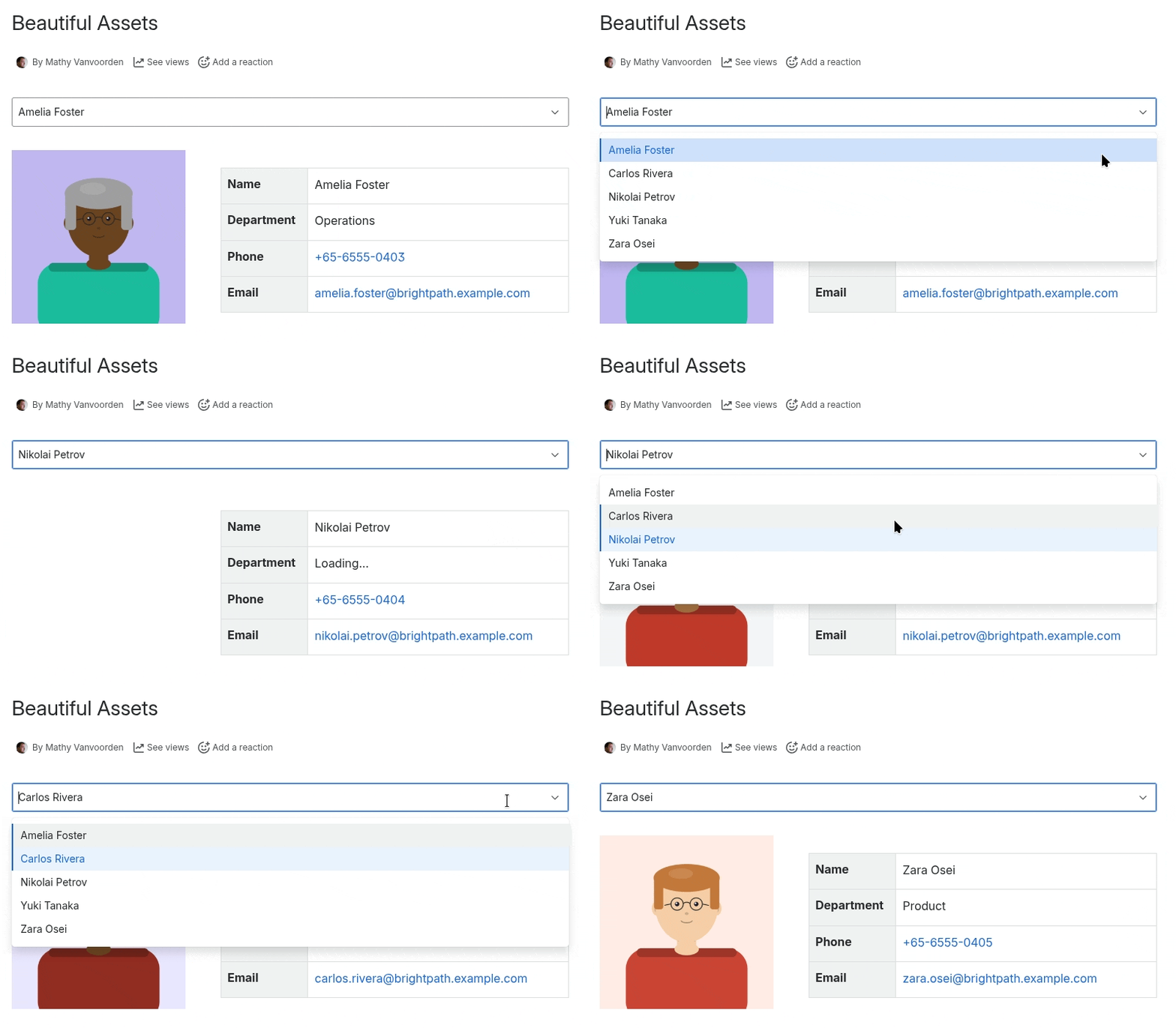
When a filter returns multiple objects, you can enable an object selection dropdown. This lets viewers of the published page pick which object to view, and all connected macros update automatically.
Enabling Object Selection
- Open the filter configuration
- Configure your filter (schema, type, rules)
- Verify the Results Preview shows multiple objects
- Check “Show object selection in View Mode”
- Click Save
The checkbox is only available when the filter returns more than one result.
How It Works
On the published page, the filter displays a dropdown containing all matching objects. When a viewer selects an object:
- All macros linked to this filter update to display data from the newly selected object
- The update is instant, no page reload required
Dropdown Item Limits
By default, the dropdown shows up to 30 items. If the filter returns more objects than this limit, only the first items appear in the dropdown.
The limit is configurable by workspace admins in Admin Settings . If you see a warning about the limit in the filter configuration, consider adding more specific filter rules to narrow results or asking your admin to increase the limit.
When to Use Object Selection
Object selection is useful when you want viewers to browse through a collection of objects. Common examples:
- Employee directory: browse through employees to see their details
- Asset lookup: select an asset to view its full information
- Project overview: switch between projects to see status and details
Single-Object Macros
Some macros (Text, Phone, Email, Image, Hyperlink, List) display data for a single object. When their filter returns multiple objects:
- With object selection enabled: The macro shows data for whichever object is selected in the dropdown
- Without object selection: The macro shows the first result
The Table macro is different because it always shows all objects from the filter, regardless of the object selection setting.