
Basic Mode
Basic mode lets you build filter queries by selecting a schema, object type, and adding rules. The app generates the AQL query for you behind the scenes.
Selecting Schema and Object Type
- Open the filter configuration
- Select an Object Schema, which is a top-level grouping in Jira Assets (e.g., “IT Assets”, “HR”)
- Select an Object Type, which is the kind of object you want to query (e.g., “Computer”, “Employee”, “Server”)
The schema and object type form the base of your query. Without any additional rules, the filter returns all objects of that type.
Adding Filter Rules
Rules narrow down which objects the filter returns. Click Add rule to create one.
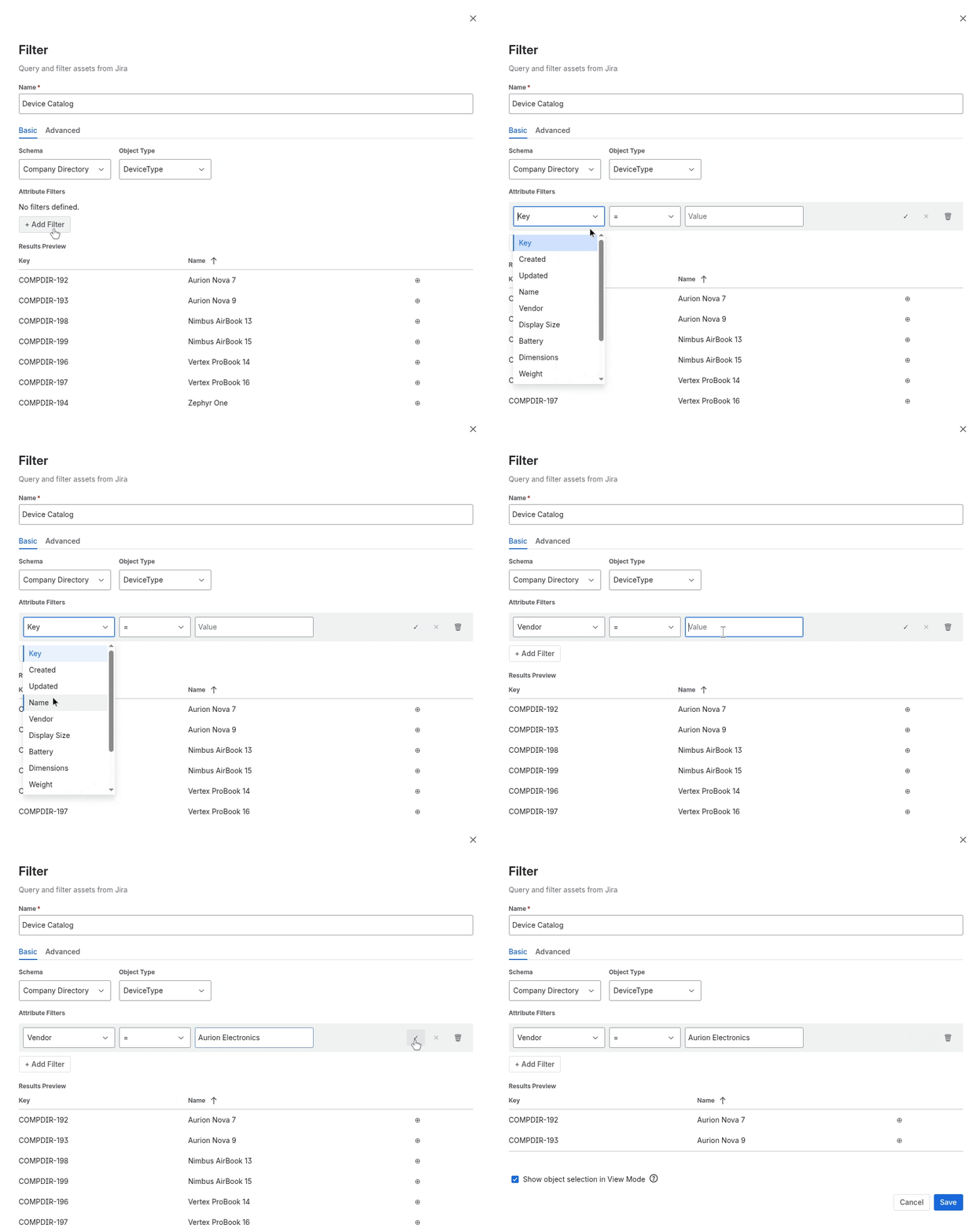
Each rule has three parts:
| Part | Description |
|---|---|
| Field | The attribute to filter on (e.g., “Status”, “Name”, “Location”) |
| Operator | How to compare (e.g., equals, contains, starts with) |
| Value | The value to compare against |
Available Operators
| Operator | Description | Example |
|---|---|---|
= | Equals | Status = “Active” |
!= | Not equals | Status != “Retired” |
<, >, <=, >= | Comparison (numbers and dates) | “Purchase Date” > “2024-01-01” |
like | Contains text | Name like “web” |
not like | Does not contain text | Name not like “test” |
startsWith | Starts with text | Name startsWith “SRV” |
endsWith | Ends with text | Name endsWith “-prod” |
in | Matches any value in a list | Status in (“Active”, “Pending”) |
not in | Does not match any value in a list | Status not in (“Retired”, “Disposed”) |
is EMPTY | Has no value | Owner is EMPTY |
is not EMPTY | Has a value | Owner is not EMPTY |
matchesFilter | Matches objects from another filter | See below |
Multiple Rules
When you add multiple rules, they are combined with AND logic. All rules must match for an object to appear in the results.
For example, these two rules together mean “active computers in New York”:
- Status = “Active”
- Location = “NYC”
The matchesFilter Operator
The matchesFilter operator lets one filter reference another filter on the same page. This is useful for creating dependent or cascading filters.
When you select matchesFilter as the operator, the value dropdown shows other filters on the page. The rule resolves to the AQL query of the referenced filter at runtime.
Preview Panel
After configuring rules, the Results Preview shows a table of matching objects so you can verify the query before saving.
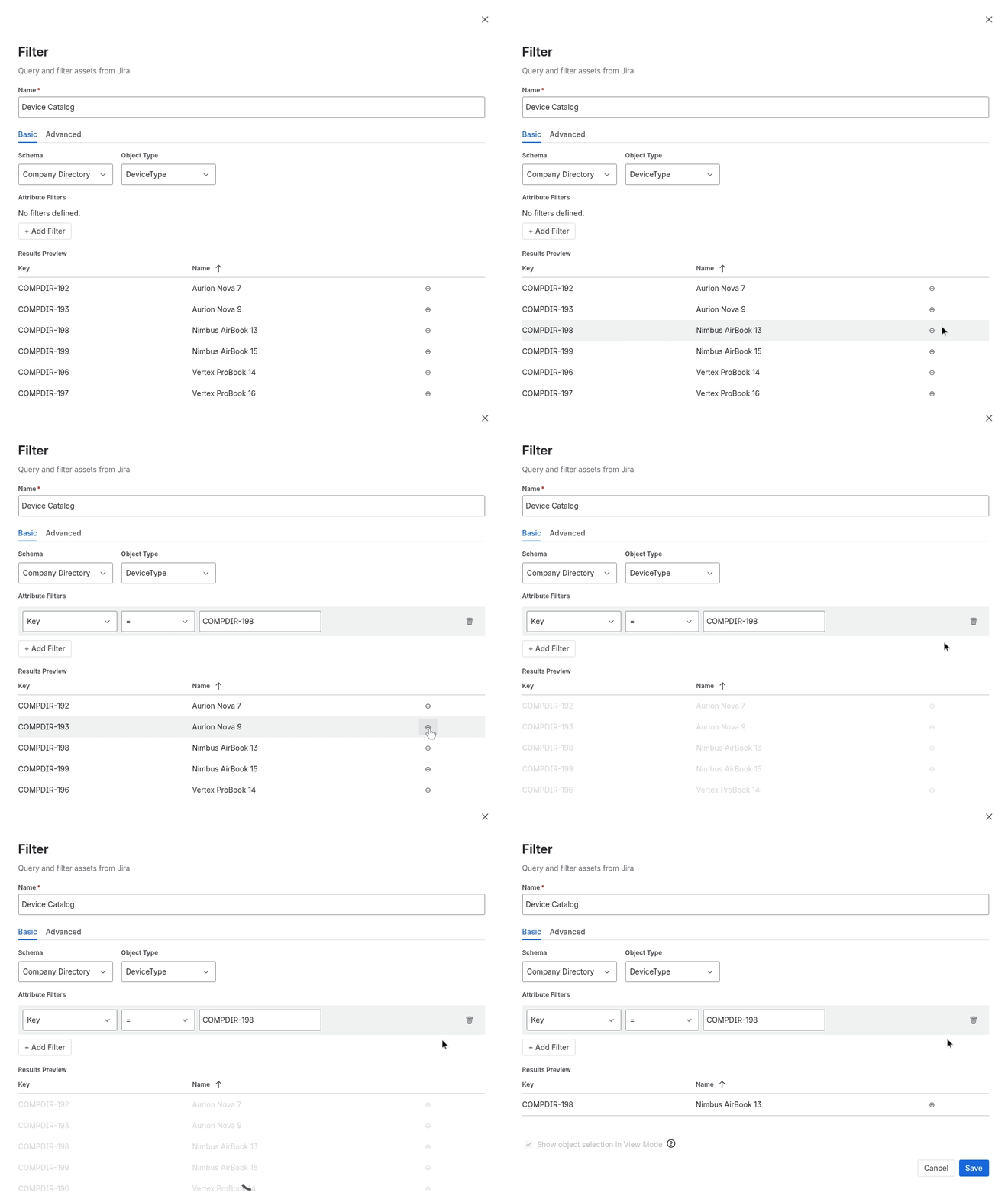
You can click on an object key in the preview to add a rule that pins the filter to that specific object.
Saving
Click Save to store the filter configuration. The filter name must be unique across all filters on the page.